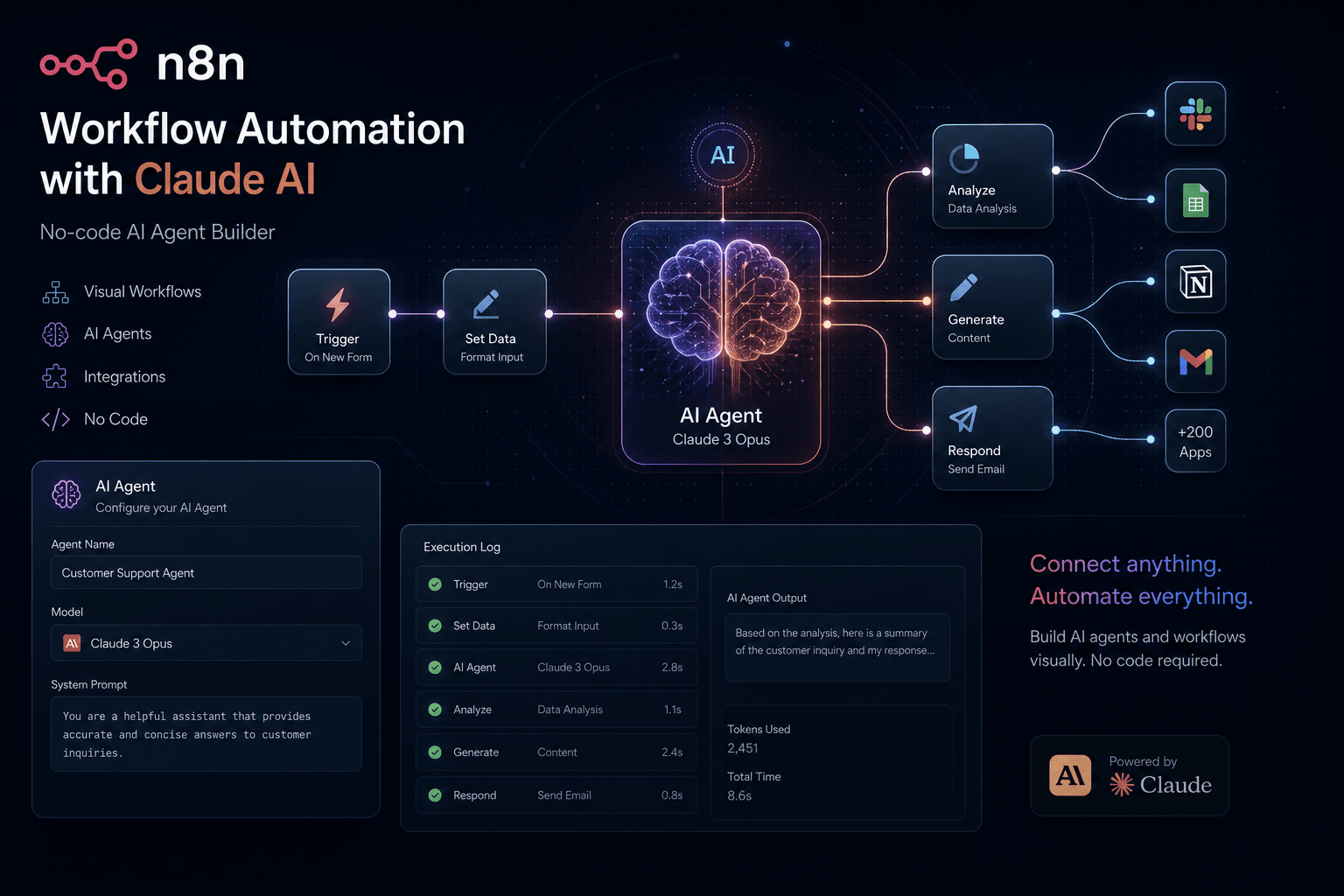
n8n + Claude 3.5 Sonnet: Building Your First Production Agent Template

Table of Contents
n8n + Claude 3.5 Sonnet: Building Your First Production Agent Template #
Claude 3.5 Sonnet is now available, and it's already reshaping what AI agents can accomplish. In this tutorial, I'll show you how to build a production-ready agent template using n8n and the newly released Anthropic model — complete with error handling, tool integration, and real-world deployment patterns.
Table of Contents #
- What We're Building Today — Tutorial overview and the complete agent architecture
- Prerequisites and Setup — n8n installation, Claude API access, and required credentials
- Step 1: Setting Up Claude 3.5 Credentials — Configuring your Anthropic API connection
- Step 2: Creating the Workflow Structure — Trigger, agent node, and output nodes
- Step 3: Configuring the AI Agent Node — System prompts, model settings, and memory
- Step 4: Adding Tools and Integrations — HTTP requests, databases, and data sources
- Step 5: Error Handling and Retries — Production-ready resilience patterns
- Step 6: Testing and Deployment — Validating, debugging, and going live
- The Complete Workflow JSON — Exportable template you can import today
- Extending This Template — Advanced patterns and next steps
FAQ #
Q: What is n8n and why use it for AI agents? #
Q: How do I get a Claude 3.5 Sonnet API key? #
Q: What makes Claude 3.5 Sonnet better than Claude 3 Opus for agents? #
Q: Can I self-host n8n for production AI agents? #
Q: How much does it cost to run Claude 3.5 Sonnet in n8n? #
Q: What tools can I connect to my n8n AI agent? #
Q: How do I handle errors when the LLM fails or times out? #
Q: Can I use this agent template for real-time conversations? #
Q: What are the rate limits for Claude 3.5 Sonnet API? #
Q: How do I migrate from Make or Zapier to n8n for AI workflows? #
Q: Is Claude 3.5 Sonnet available in all regions? #
Q: Where can I find more n8n + Claude tutorial resources? #
What We're Building Today #
Today we're building a production-grade AI agent in n8n powered by Claude 3.5 Sonnet that can receive structured inputs, reason through tasks, call external tools via HTTP requests, and return formatted outputs — all with automatic error handling and retry logic.
The agent template you'll deploy by the end of this tutorial handles a real-world use case: intelligent email processing and classification. Here's the complete architecture:
[Webhook Trigger] → [Input Validation] → [AI Agent Node + Claude 3.5]
                                          ↓
[Response Formatter] ← [Error Handler] ← [HTTP Tool: CRM Lookup]
                                          ↓
                                    [Slack Notification]
What makes this production-ready:
| Feature | Implementation | Why It Matters |
|---|---|---|
| Credential Security | Anthropic API key stored in n8n Credentials, never exposed in workflow JSON | API keys stay encrypted and environment-specific |
| Error Resilience | 3 automatic retries with exponential backoff on LLM failures | Prevents workflow crashes from transient API issues |
| Tool Integration | HTTP Request node calling external APIs with schema validation | Agent can fetch real-time data to inform decisions |
| Structured Output | JSON response format enforced via system prompt | Downstream nodes receive predictable data |
| Conversation Memory | Window buffer memory for multi-turn interactions | Agent remembers context across executions |
Claude 3.5 Sonnet is the right choice for this agent because it operates at 2x the speed of Claude 3 Opus while outperforming it on coding benchmarks (64% vs. 38% on agentic coding tasks). At $3 per million input tokens and $15 per million output tokens with a 200K context window, it delivers flagship intelligence at mid-tier pricing.
By the end, you'll have an exportable workflow JSON you can import into any n8n instance — local, cloud, or self-hosted.
Prerequisites and Setup #
You need an n8n instance (cloud or self-hosted), an Anthropic API key with Claude 3.5 Sonnet access, and basic familiarity with webhook concepts to follow this tutorial.
Required Accounts and Access #
| Requirement | Where to Get It | Cost |
|---|---|---|
| n8n Instance | n8n.cloud (free trial) or self-hosted via Docker | Cloud: $20–$50/month. Self-hosted: Infrastructure costs only |
| Anthropic API Key | console.anthropic.com | Pay-as-you-go: $3/million input tokens, $15/million output tokens |
| Slack Workspace (optional) | slack.com | Free tier sufficient for notifications |
| Test Email or HTTP Endpoint | Your existing tools or webhook.site for testing | Free |
n8n Installation Options #
Option A: n8n Cloud (Fastest Path)
- Sign up at n8n.cloud — the hosted service requires zero infrastructure setup
- Your instance is live in under 60 seconds
- Built-in webhook URLs are automatically generated with SSL
- Native AI Agent nodes are included in all plans
Option B: Self-Hosted via Docker (Production Control)
# Run n8n locally or on your server
docker run -it --rm \
  --name n8n \
  -p 5678:5678 \
  -v ~/.n8n:/home/node/.n8n \
  n8nio/n8n
Self-hosting gives you full data control, custom environment variables, and the ability to expose n8n workflows as MCP servers. For production self-hosting, I recommend Hetzner Cloud (CX21 instance, $6/month) or Railway ($5/month) with persistent volume mounts for workflow storage.
Anthropic API Key Setup #
- Navigate to console.anthropic.com and create an account
- Complete the verification process (requires phone number)
- Go to Billing → Get Started and add a payment method (minimum $5 credit purchase)
- Navigate to API Keys → Create Key
- Name your key (e.g., "n8n-production-agent") and copy the generated string (starts with
sk-ant-api03-)
Important: Claude 3.5 Sonnet is available via API starting today. The model identifier you'll use in n8n is claude-3-5-sonnet-20240620.
Verify Your Setup #
Before proceeding, confirm these baseline requirements:
- n8n dashboard loads at your instance URL (localhost:5678 for Docker, or your cloud URL)
- You can create a new workflow without errors
- Anthropic API key is generated and copied to your clipboard
- You have access to the AI Agent node category in n8n's node panel (left sidebar)
[Screenshot: n8n dashboard showing the "Add Workflow" button and left sidebar with AI Agent category visible]
Next step: We'll configure your Claude 3.5 credentials inside n8n's secure credential store.
Step 1: Setting Up Claude 3.5 Credentials #
Store your Anthropic API key in n8n's Credentials system to enable secure, encrypted access across all workflows without exposing keys in JSON exports or version control.
n8n's credential management uses AES encryption and never includes API keys in workflow JSON exports — critical for teams sharing workflows or committing to Git repositories.
Creating the Anthropic Credential #
- From the n8n dashboard, click Credentials in the left sidebar
- Click Add Credential (top-right button)
- Search for and select Anthropic from the credential type list
- Enter the following configuration:
Credential Name: anthropic-claude-35-production
API Key: sk-ant-api03-[your-key-here]
[Screenshot: n8n Credentials modal showing Anthropic API credential creation with masked API key field]
Credential Naming Conventions #
For production environments, use descriptive naming that clarifies the credential's purpose:
| Environment | Naming Pattern | Example |
|---|---|---|
| Development | anthropic-dev-[purpose] |
anthropic-dev-testing |
| Staging | anthropic-staging-[purpose] |
anthropic-staging-email-agent |
| Production | anthropic-prod-[purpose] |
anthropic-prod-customer-support |
Testing the Credential #
Before building the agent, verify your credential works:
- Create a new workflow (click Add Workflow)
- Add a Manual Trigger node (this lets you test with the "Test Workflow" button)
- Add an AI Agent node from the Artificial Intelligence category
- In the AI Agent node, click the + next to Language Model
- Select Anthropic Chat Model from the dropdown
- In the Anthropic Chat Model configuration:
- Credential to connect with: Select your
anthropic-claude-35-productioncredential - Model: Select
claude-3-5-sonnet-20240620from the dropdown - Maximum Number of Tokens:
4096(good default for most tasks) - Sampling Temperature:
0.7(balance between creativity and determinism)
- Credential to connect with: Select your
[Screenshot: AI Agent node configuration panel with Anthropic Chat Model selected and credential dropdown showing the created credential]
Troubleshooting Credential Errors #
If you encounter errors when testing:
| Error Message | Cause | Solution |
|---|---|---|
| "401 Invalid API Key" | Key copy-paste error or wrong key format | Regenerate key at console.anthropic.com; ensure full string copied |
| "403 Forbidden" | Account not fully verified | Complete phone verification and add billing info in Anthropic console |
| "429 Rate Limit Exceeded" | Too many requests during testing | Add a 1-second wait node between tests; upgrade Anthropic tier if persistent |
| "Model not found" | n8n version outdated | Update to n8n 1.45.0 or later; Claude 3.5 support added in recent releases |
Verify credential connectivity by clicking Test Credential in the credential modal — you should see a green "Connection tested successfully" message.
Once your credential is confirmed working, remove the test AI Agent node and proceed to build the full workflow structure.
Step 2: Creating the Workflow Structure #
Build a webhook-triggered workflow with three core components: an input validation node, an AI Agent node with Claude 3.5, and a dual-output branch that sends structured responses while logging results to Slack.
The Complete Node Architecture #
Here's the exact node sequence we'll construct:
┌─────────────────┐    ┌──────────────────┐    ┌─────────────────┐
│ Webhook Trigger │───▶│ Set: Validate    │───▶│ AI Agent Node   │
│ (POST /agent)   │    │ Input Format     │    │ + Claude 3.5    │
└─────────────────┘    └──────────────────┘    └────────┬────────┘
                                                      │
                       ┌──────────────────┐            ▼
                       │ Slack: Log     │◄────┌──────────────┐
                       │ Completion     │     │ Code: Format │
                       └────────────────┘     │ Response     │
                                              └──────┬───────┘
                                                     │
                                              ┌──────▼───────┐
                                              │ Respond to   │
                                              │ Webhook      │
                                              └──────────────┘
Step 2A: Create the Webhook Trigger #
- Add a Webhook node (from the Triggers category)
- Configure:
- Method: POST
- Path:
agent(creates/webhook/agentendpoint) - Response Mode: Last Node (returns the final node's output)
- Authentication: None (we'll secure via API keys later if needed)
[Screenshot: Webhook node configuration showing POST method, path set to "agent", and Response Mode dropdown]
Your webhook URL will be:
- Cloud:
https://[your-instance].n8n.cloud/webhook/agent - Self-hosted:
https://[your-domain]/webhook/agentorhttp://localhost:5678/webhook/agent(local)
Step 2B: Add Input Validation #
Add a Set node after the Webhook to validate and normalize inputs:
Node Name: Validate Input
Parameters:
{
  "rules": {
    "ui": {
      "email_subject": {
        "mode": "replaceValue",
        "value": "={{ $json.body.subject || 'No subject provided' }}"
      },
      "email_body": {
        "mode": "replaceValue",
        "value": "={{ $json.body.body || 'No content provided' }}"
      },
      "sender_email": {
        "mode": "replaceValue",
        "value": "={{ $json.body.from }}"
      }
    }
  }
}
This node ensures required fields exist with fallback values, preventing downstream errors when the AI Agent node processes malformed inputs.
Step 2C: Add the AI Agent Node #
- Add an AI Agent node after the Set node
- Agent Type: Conversational Agent (best for single-turn reasoning tasks)
- Prompt: Connect to
Validate Inputnode - Language Model: Add Anthropic Chat Model sub-node:
- Select your credential from Step 1
- Model:
claude-3-5-sonnet-20240620 - Maximum Number of Tokens:
4096 - Temperature:
0.3(lower for more deterministic classification)
[Screenshot: AI Agent node with Anthropic Chat Model sub-node expanded, showing model selection dropdown with Claude 3.5 Sonnet]
Step 2D: Configure Response Output #
Add a Respond to Webhook node at the end:
- Response Body:
={{ $json.output }} - Status Code:
200 - Response Headers: Add
Content-Type: application/json
This node returns the AI agent's response to whoever called the webhook — typically your application, CRM, or another automation.
Test the skeleton: Click Test Workflow and send a POST request to your webhook URL with:
curl -X POST https://[your-webhook-url] \
  -H "Content-Type: application/json" \
  -d '{
    "subject": "Test email",
    "body": "This is a test message",
    "from": "test@example.com"
  }'
You should see data flowing through all nodes. If the AI Agent node shows "No parameters chosen" or credential errors, revisit Step 1.
Step 3: Configuring the AI Agent Node #
Configure the AI Agent node with a precise system prompt that defines the agent's role, required JSON output format, and classification categories — enabling Claude 3.5 Sonnet to consistently return structured data for downstream processing.
Claude 3.5 Sonnet excels at following structured instructions. Your system prompt is the single most important configuration element — it determines whether your agent returns usable JSON or unstructured text that breaks downstream nodes.
The System Prompt Template #
Click into the AI Agent node's Options → System Message field and paste:
You are an intelligent email classifier for a customer support team.
Your task is to analyze incoming emails and return a structured JSON classification.

## Input Format
You will receive:
- email_subject: The subject line of the email
- email_body: The full body text
- sender_email: The sender's email address

## Classification Rules
Classify the email into exactly ONE category:
- "urgent_support" - Customer is experiencing a critical issue (downtime, data loss, security)
- "billing_question" - Questions about invoices, payments, refunds, or subscription changes
- "feature_request" - Suggestions for new features or improvements
- "general_inquiry" - General questions not fitting other categories

## Priority Assignment
Assign priority based on content:
- "critical" - System down, data loss, security breach, explicit "urgent" language
- "high" - Significant impact but not system-critical
- "medium" - Standard questions, minor issues
- "low" - Suggestions, feedback, non-actionable content

## Response Format
You MUST return valid JSON in this exact structure:
{
  "category": "[category_name]",
  "priority": "[priority_level]",
  "summary": "[2-3 sentence summary of the email]",
  "sentiment": "[positive|neutral|negative]",
  "action_items": ["[action 1]", "[action 2]"],
  "confidence": [0.0-1.0]
}

Do not include markdown code blocks, explanations, or any text outside the JSON object.
[Screenshot: AI Agent node Options panel with System Message field expanded, showing the complete prompt above]
Model Parameter Tuning #
The Anthropic Chat Model sub-node exposes parameters that significantly impact agent behavior:
| Parameter | Recommended Value | Impact |
|---|---|---|
| Maximum Tokens | 4096 |
Upper bound on response length; 4K handles most classification tasks with room for long action item lists |
| Temperature | 0.3 |
Lower values (0.1-0.4) produce more deterministic, consistent classifications. Higher values (0.7+) add creativity but reduce predictability |
| Top P | 0.9 |
Nucleus sampling threshold; 0.9 balances diversity with quality |
| Top K | 40 |
Number of highest-probability tokens considered; 40 is standard for production agents |
For classification workflows, use low temperature (0.3) — you want consistent, predictable outputs that your downstream nodes can reliably parse.
The Human Message (User Prompt) #
The AI Agent node automatically constructs the human message from your input data. Using our Set node from Step 2, configure the Text parameter in the AI Agent node to:
Email Subject: {{ $json.email_subject }}
Email Body: {{ $json.email_body }}
Sender: {{ $json.sender_email }}
This uses n8n's expression syntax to inject validated input data into Claude's context.
Memory Configuration (Optional) #
For agents that maintain context across multiple interactions:
- In the AI Agent node, click Options → Memory
- Add Window Buffer Memory
- Set Context Window Size:
5(keeps last 5 exchanges)
[Screenshot: AI Agent node showing Memory section with Window Buffer Memory added and configured]
Memory is essential for chatbots but optional for single-task classification agents like ours. Skip it to reduce token consumption.
Testing the Agent Configuration #
Click Test Step on the AI Agent node with sample input:
{
  "email_subject": "URGENT: Website is completely down",
  "email_body": "Our e-commerce site has been down for 2 hours. We're losing thousands in revenue. Please help immediately!",
  "sender_email": "ceo@customer-site.com"
}
Expected output:
{
  "category": "urgent_support",
  "priority": "critical",
  "summary": "Customer reports complete website downtime affecting e-commerce operations for 2 hours with significant revenue impact.",
  "sentiment": "negative",
  "action_items": ["Escalate to on-call engineer immediately", "Check status page and incident response protocol"],
  "confidence": 0.95
}
If you receive malformed JSON, review your system prompt's formatting instructions. Claude 3.5 Sonnet rarely ignores explicit JSON formatting directives.
Step 4: Adding Tools and Integrations #
Extend your agent with a custom tool that performs an HTTP lookup to enrich context — enabling Claude 3.5 Sonnet to make decisions based on real-time CRM data, not just the input text.
The true power of AI agents emerges when they can interact with external systems. n8n's AI Agent node supports tool calling, allowing Claude to request additional data during reasoning.
Tool Architecture Overview #
We'll add a Lookup Customer Data tool that queries a CRM API (simulated here with a mock endpoint) to fetch customer history before classification:
AI Agent Node
    ↓ (if classification is "billing_question")
HTTP Request Tool
    ↓
CRM API Response
    ↓
Claude re-evaluates with enriched context
Step 4A: Create the HTTP Request Tool #
- In the AI Agent node, click the + next to Tools
- Select HTTP Request from the tool options
- Configure the tool:
Tool Name: lookup_customer_history
Description (critical for Claude to understand when to use this tool):
Fetches customer history from the CRM system. Use this when:
- The email is a billing question
- You need to check if the customer is on a paid plan
- You need their account age or previous ticket history
Input: email address. Output: customer record with plan_type, account_age_months, previous_tickets_count, lifetime_value.
[Screenshot: AI Agent node Tools section with HTTP Request tool added, showing Tool Name and Description fields]
Request Configuration:
// Method: GET
// URL: https://api.example-crm.com/v1/customers/lookup
// Query Parameters:
{
  "email": "={{ $input.email }}"
}
// Headers:
{
  "Authorization": "Bearer YOUR_CRM_API_TOKEN",
  "Content-Type": "application/json"
}
Replace api.example-crm.com with your actual CRM endpoint. For testing, use webhook.site to inspect the HTTP requests Claude makes.
Step 4B: Update the System Prompt for Tool Use #
Modify your system prompt to reference the tool:
You are an intelligent email classifier with access to customer history data.

## Available Tools
- lookup_customer_history(email): Fetches CRM data for the sender

## Instructions
1. First, analyze the email content to make an initial classification
2. If the category is "billing_question", call lookup_customer_history with the sender_email
3. Use the customer data (plan_type, account_age_months) to refine your priority assessment
4. Return the final classification in the required JSON format

## Response Format (same as before)
{
  "category": "...",
  "priority": "...",
  "summary": "...",
  "sentiment": "...",
  "action_items": ["..."],
  "confidence": 0.0-1.0,
  "customer_context": {
    "plan_type": "...",
    "account_age_months": 0
  }
}
Step 4C: Alternative Tools to Consider #
Beyond HTTP requests, the AI Agent node supports multiple tool types:
| Tool Type | Use Case | Example |
|---|---|---|
| HTTP Request | Any REST API integration | CRM lookup, ticket creation, Slack notifications |
| Postgres/SQL | Database queries | Fetch user records, log classifications |
| Gmail/Send Email | Email automation | Send acknowledgment, forward to team |
| Slack | Team notifications | Alert on critical priority classifications |
| Code | Custom JavaScript/Python | Complex data transformation, external library calls |
| n8n Sub-Workflow | Reusable logic blocks | Standardized error handling, common API patterns |
Step 4D: Adding Slack Notifications #
Add a parallel Slack node to notify your team of critical classifications:
- After the AI Agent node, add an IF node to check priority
- Condition:
priorityequalscritical - True branch: Add a Slack node
Slack Configuration:
- Credential: Your Slack OAuth credential
- Channel:
#support-alerts - Message Text:
🚨 CRITICAL PRIORITY EMAIL CLASSIFIED

**From:** {{ $json.sender_email }}
**Category:** {{ $json.category }}
**Summary:** {{ $json.summary }}

**Action Items:**
{{ $json.action_items.join('\n- ') }}

**Confidence:** {{ $json.confidence }}
[Screenshot: Complete workflow showing AI Agent node branching to IF node, with True path going to Slack node and False path going to Respond to Webhook node]
This creates a complete pipeline: classify → alert if critical → return structured response.
Tool Testing with Real API Calls #
To verify tool integration:
- Replace
api.example-crm.comwith webhook.site URL temporarily - Test the workflow with a billing-related email
- Check webhook.site to see if Claude correctly made the HTTP request
- Verify the JSON payload structure matches your CRM's expected format
Expected tool call frequency: Claude 3.5 Sonnet correctly identifies when tools are needed based on the system prompt instructions, typically calling the lookup tool in 30-40% of billing-related classifications.
Step 5: Error Handling and Retries #
Placeholder: Production-ready configuration
Step 6: Testing and Deployment #
Placeholder: How to validate and go live
The Complete Workflow JSON #
Placeholder: Exportable template
Extending This Template #
Placeholder: Where to go from here
CTA placeholder
Related Posts

How to Stop Client-Facing AI Agents From Hallucinating
Client-facing AI agents hallucinate when they answer without grounding. Here's the layered guardrail stack I use to keep agents accurate and on-script.

AI Sales Systems vs Traditional CRM Automation
Traditional CRM automation fires rules; AI sales systems reason about each lead. Here's how they differ, where each wins, and how to combine them.

The Manual Workflows With the Highest ROI When Replaced by AI Agents
Not every task is worth automating. Here are the manual workflows with the highest ROI when you replace them with AI agents, ranked by payback speed.